Create a Google Docs template
Your template controls layout, branding, and wording. Placeholders mark where each sheet value goes.
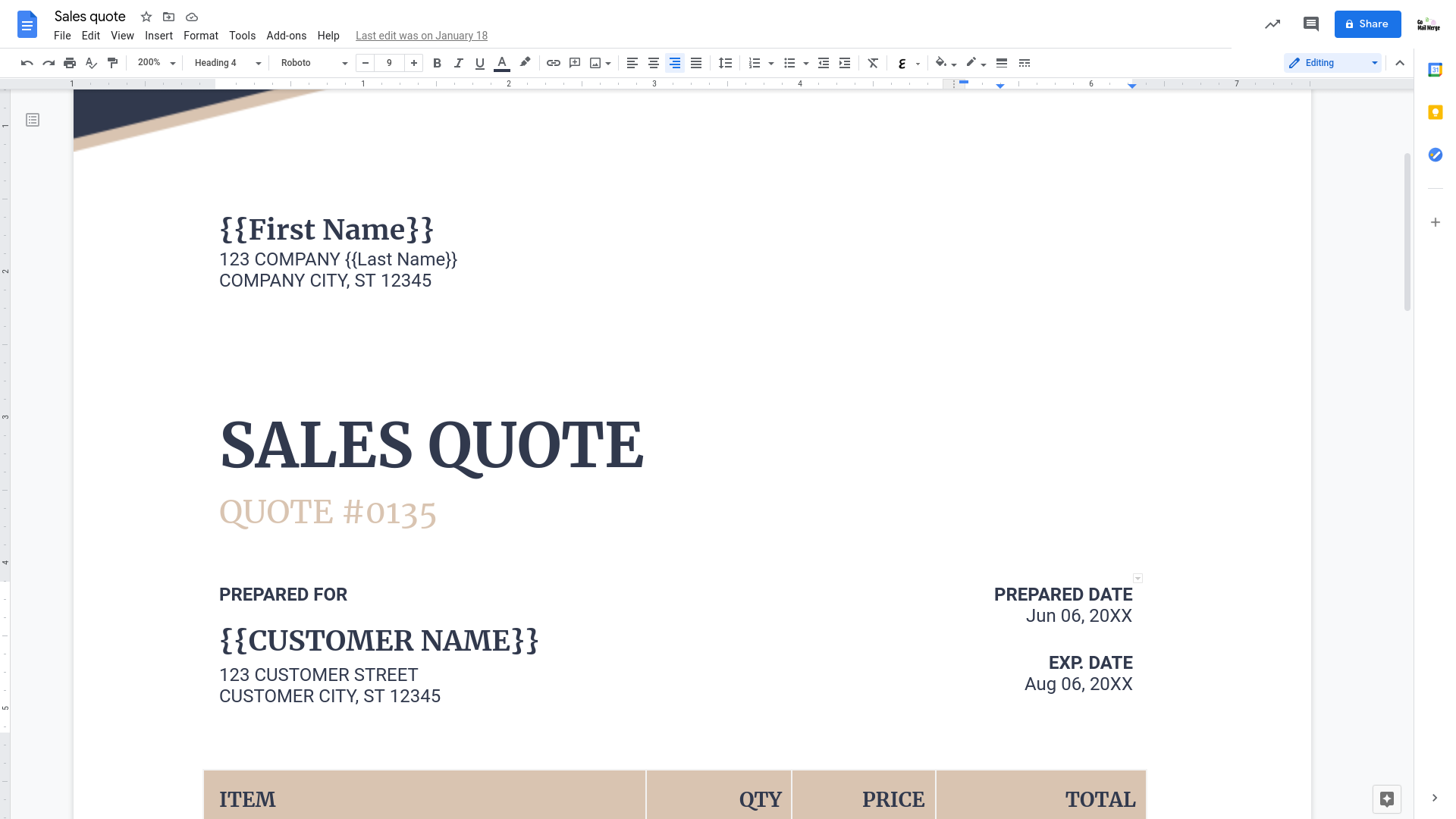
Placeholder syntax
Use double curly braces around the exact sheet header name:
{{First Name}}
{{Last Name}}
{{Company Name}}
{{Invoice Number}}
Example sentence:
Dear {{First Name}} {{Last Name}},
Thank you for your purchase from {{Company Name}}.
Your invoice number is {{Invoice Number}}.
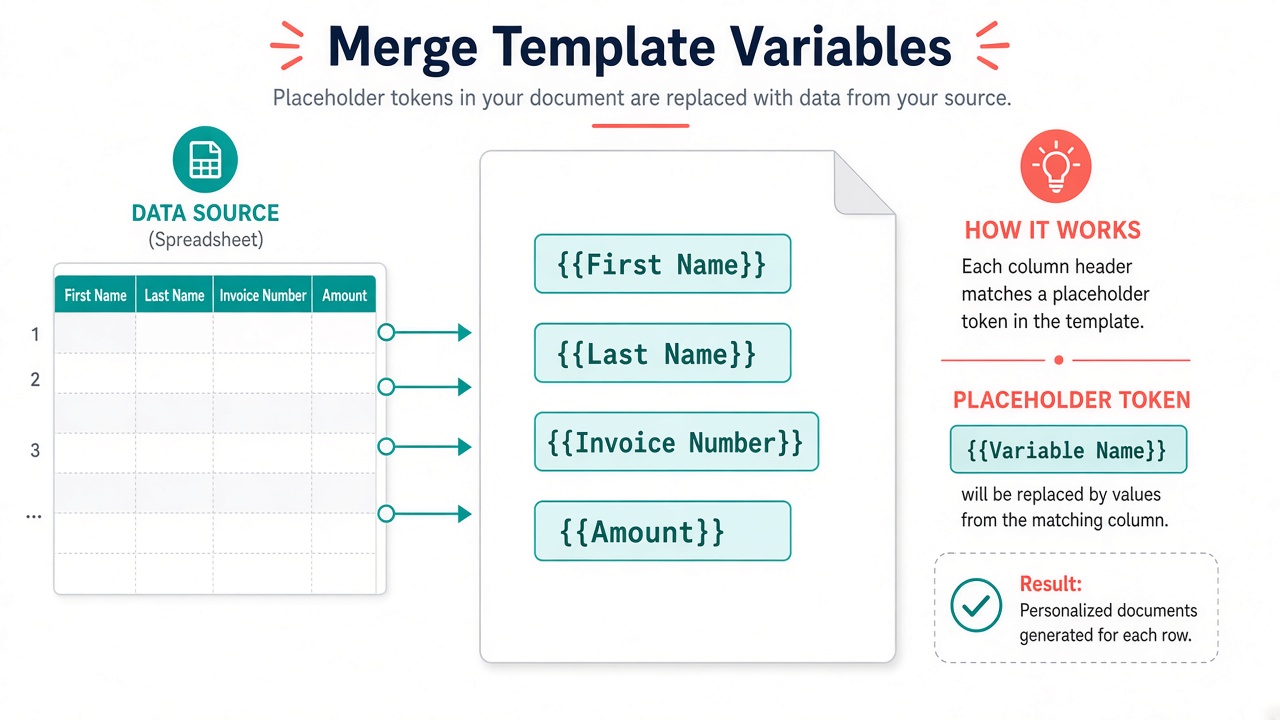
Template design tips
- Design the document for one recipient first.
- Replace unique values with placeholders.
- Keep logos, tables, and signatures outside the placeholders.
- Match placeholder text to sheet headers exactly, including spaces.
- Test with two or three sample rows before a large run.
Common mistakes
- Using
[First Name]or%First Name%instead of{{First Name}} - Changing capitalization so the placeholder no longer matches the header
- Putting two fields in one cell without separate placeholders
Next step
Start a document merge and choose an output path in Drive.