Start a document merge
After your sheet and template are ready, start the merge from the add-on.
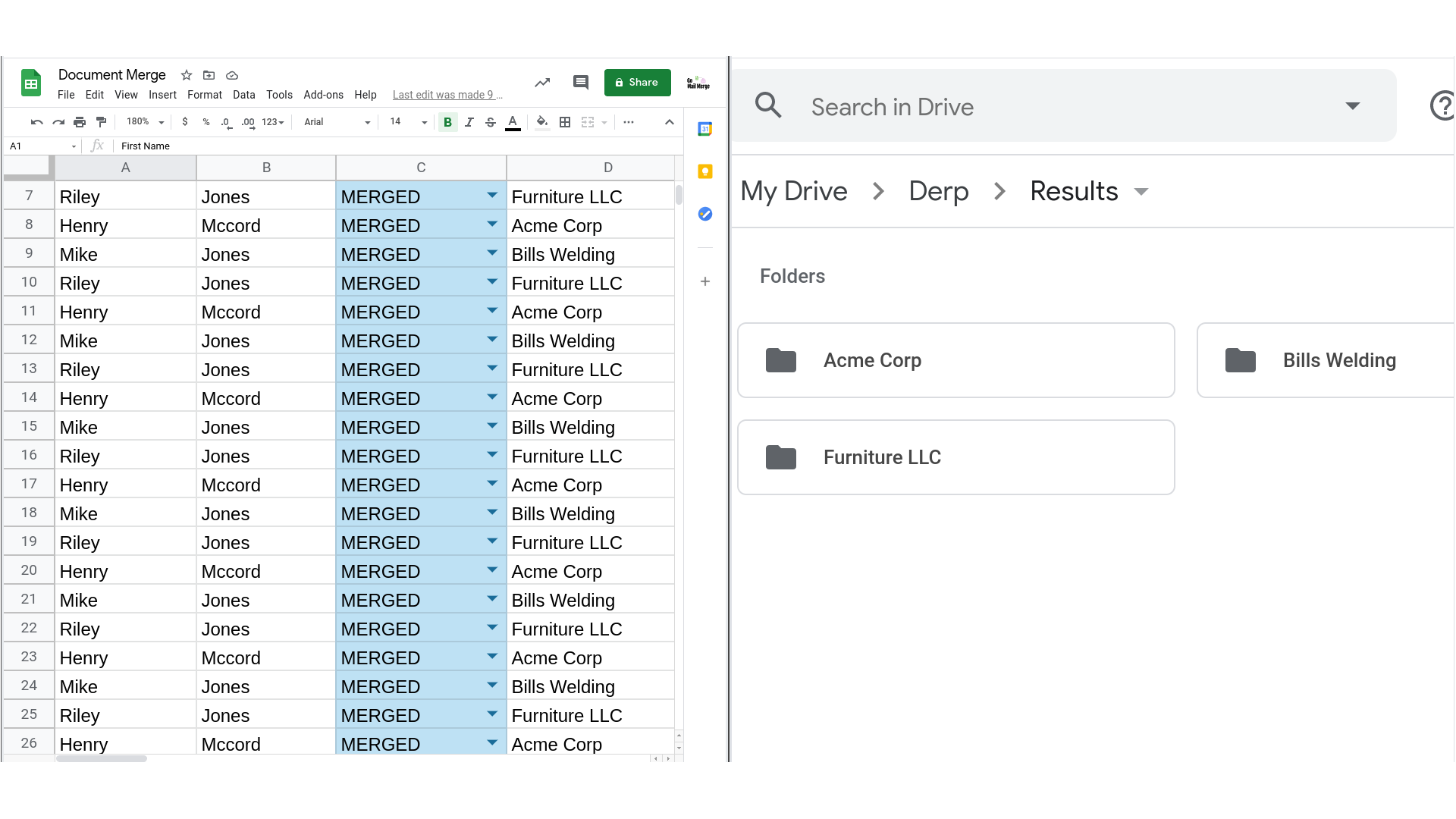
Before you click Start
Confirm these items:
- The Google Sheet holds one row per document.
- The Google Docs template uses
{{Column Name}}placeholders. - You know the Drive folder path for output files.
- You are signed in with the account that owns the files.
Run the merge
- Open your data sheet.
- Open Extensions → Go Document Merge.
- Select your Google Docs template.
- Enter a Google Drive output folder path.
- Click Start Document Merger.
The add-on creates one document per row. It continues until the job finishes or it reaches your daily quota.
Watch merge status
Go Document Merge writes status updates in your Google Sheet. Use that view to see which rows finished and which rows remain.
After the merge
Open the output Drive folder to review the generated files. Spot-check a few documents for placeholder accuracy and formatting.