Best practices for Google Docs merge templates
· 2 min read

A weak template causes most merge failures. Strong templates make large batches boring in the best way.
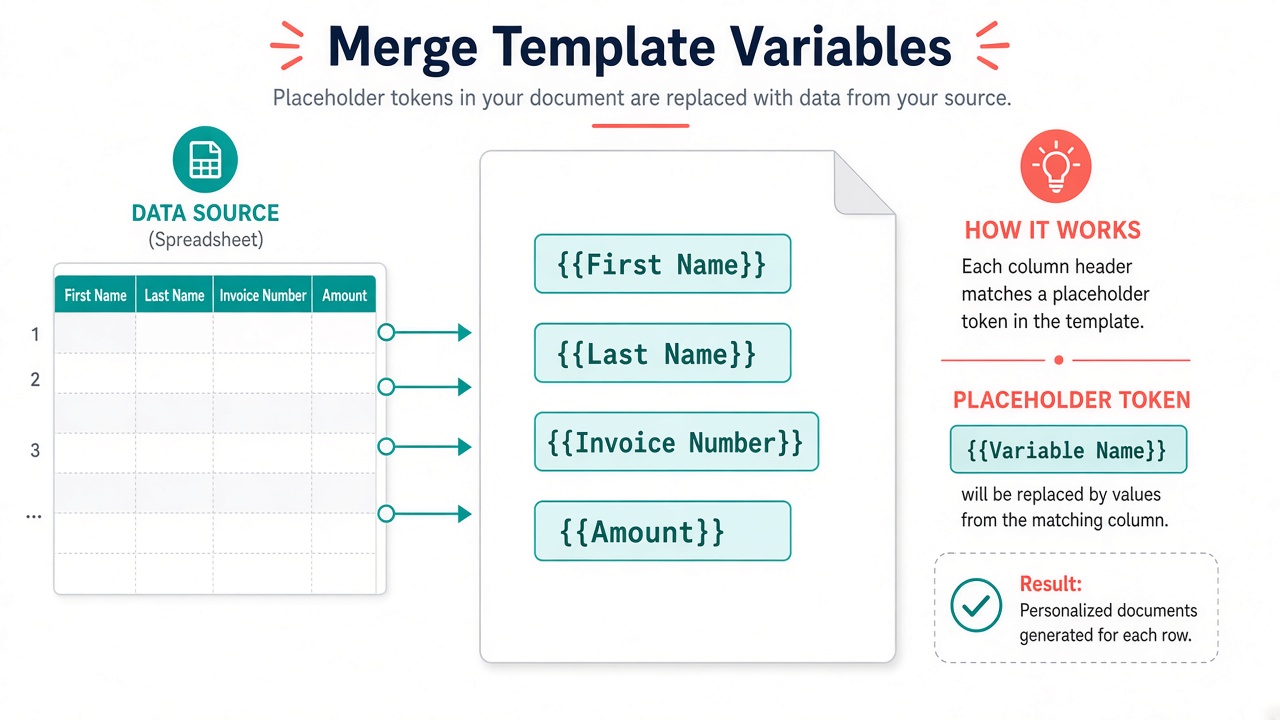
Use exact header names
If the sheet says First Name, the template needs {{First Name}}. Do not invent aliases inside the document.
Keep placeholders as plain text
Avoid splitting a placeholder across bold, color, or link boundaries when possible. Write the full {{Field}} token as one unit, then style the surrounding paragraph.
Design for one recipient first
- Write a perfect sample document for one person.
- Replace unique values with placeholders.
- Lock branding elements such as logos and footers.
- Run a two-row test merge.
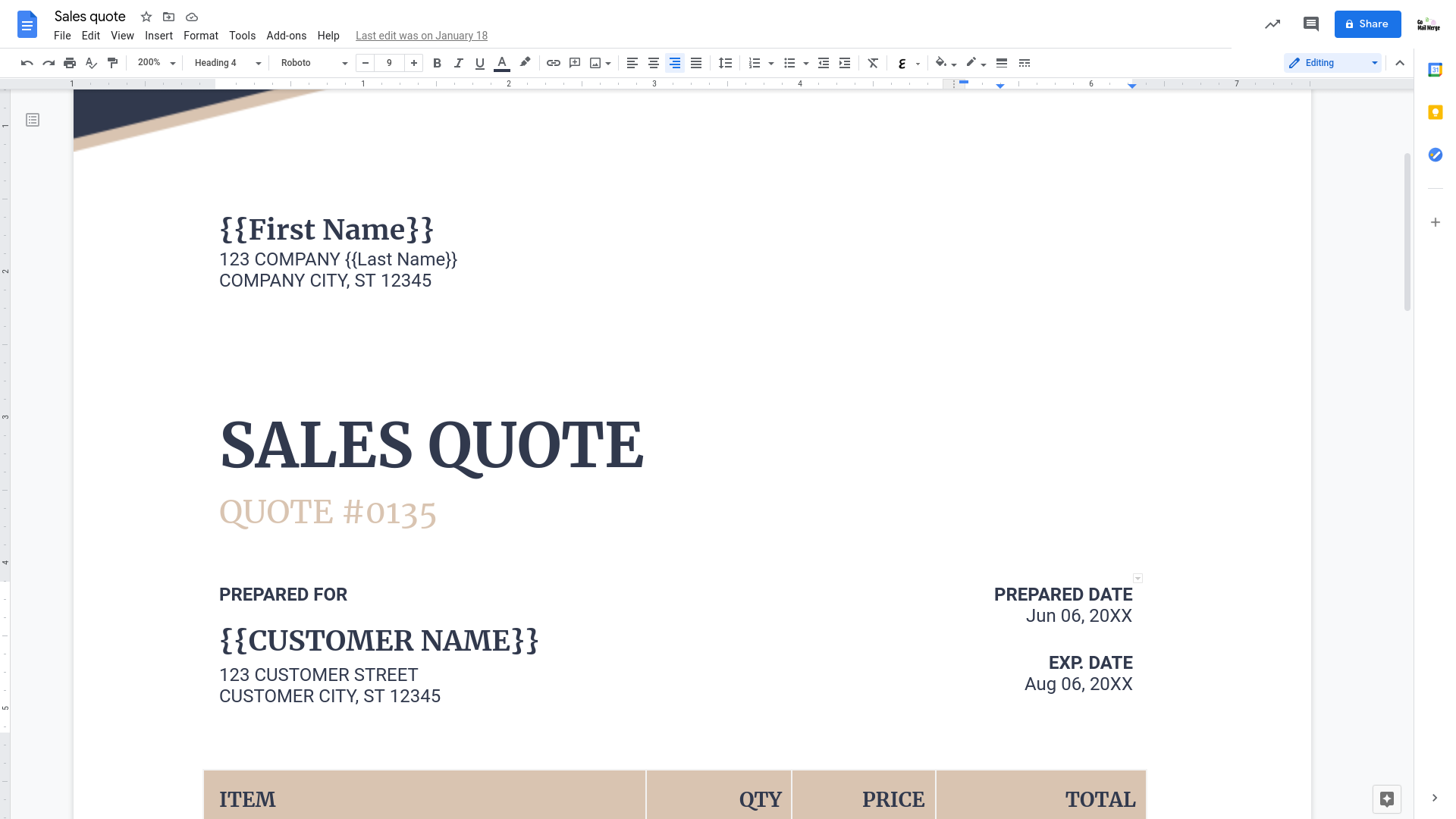
Prefer clear field names
Good headers:
Invoice NumberCourse NameStart Date
Harder headers:
Field1miscname2
Clear names help both authors and future teammates.
Separate layout from data
Do not bury business rules only inside the document. Keep values in Sheets. Keep structure in Docs. That split makes updates safer when pricing or course lists change.
Validate before a production run
- Spot-check placeholders against every header
- Confirm the Drive output path uses a unique field
- Review troubleshooting if a token remains unreplaced
Install from the Marketplace when you are ready to test.