How to create bulk personalized documents from Google Sheets

Teams still copy and paste names into Google Docs one file at a time. That process breaks when you need hundreds of invoices, certificates, or contracts.
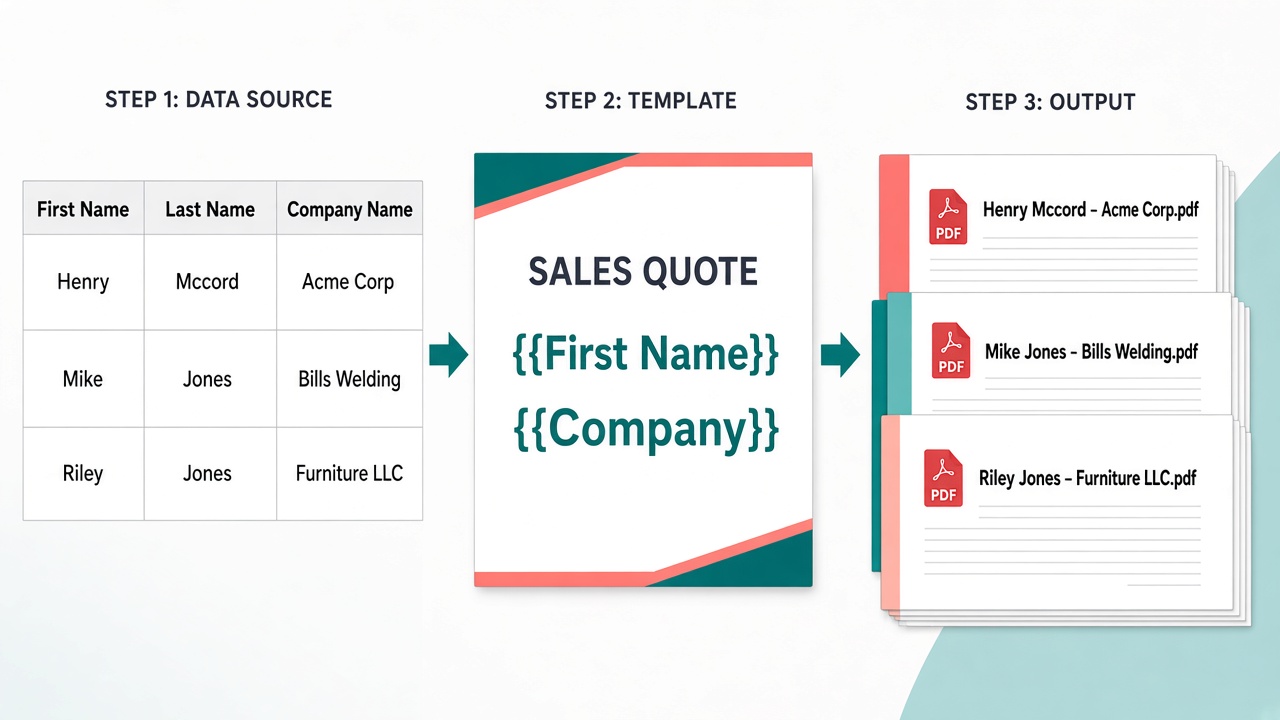
Go Document Merge solves that job inside Google Workspace. You keep data in Sheets, design one Docs template, and create a Drive folder of finished documents.
Why bulk document creation matters
Manual personalization creates three problems:
- Slow delivery for time-sensitive documents
- Typos when people retype the same fields
- Inconsistent branding across files
A merge workflow keeps the layout fixed and only changes the data.
The three-step method
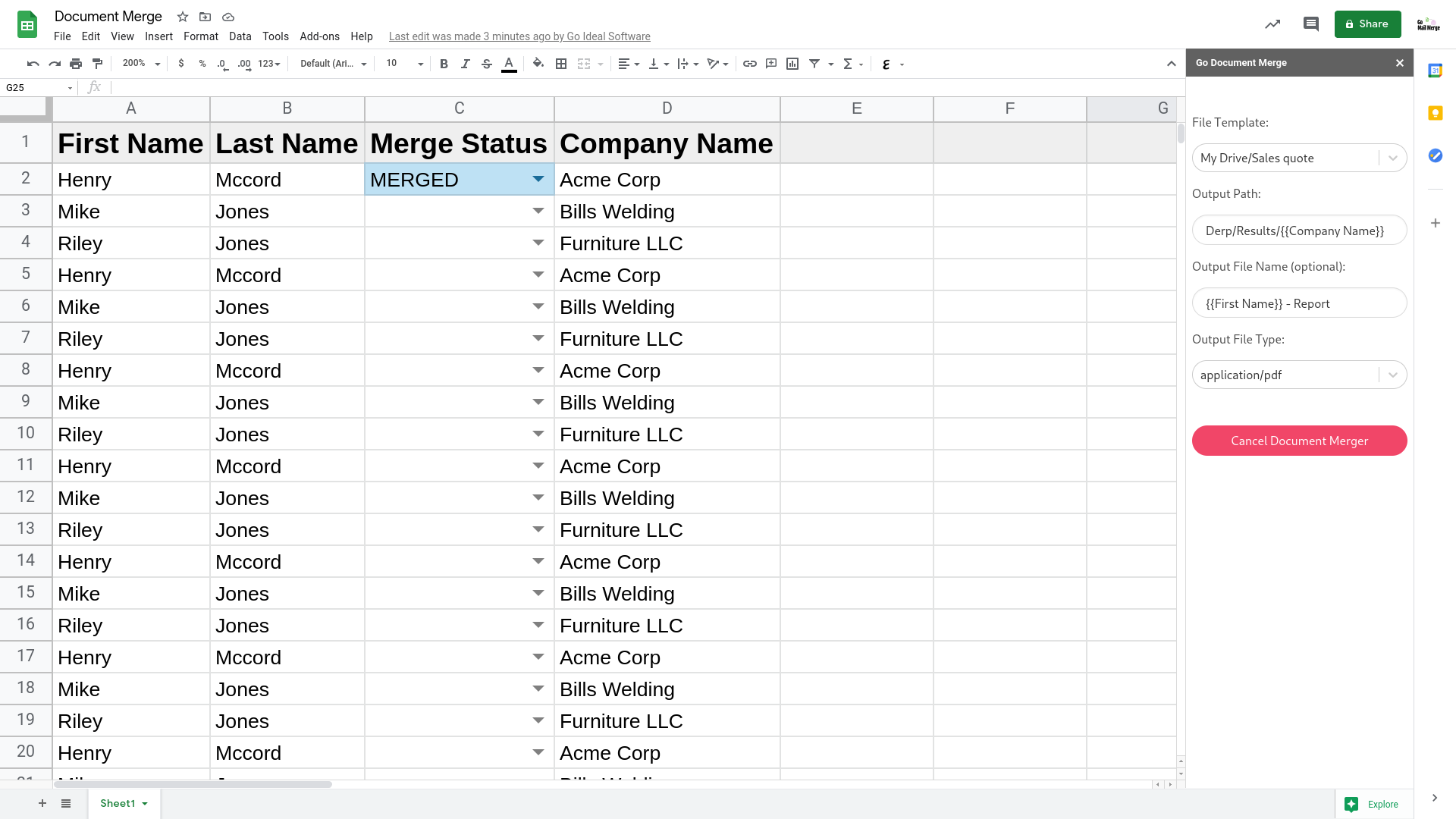
1. Structure your sheet
Put one document per row. Use clear headers such as First Name, Company Name, and Invoice Number.
2. Build a Docs template
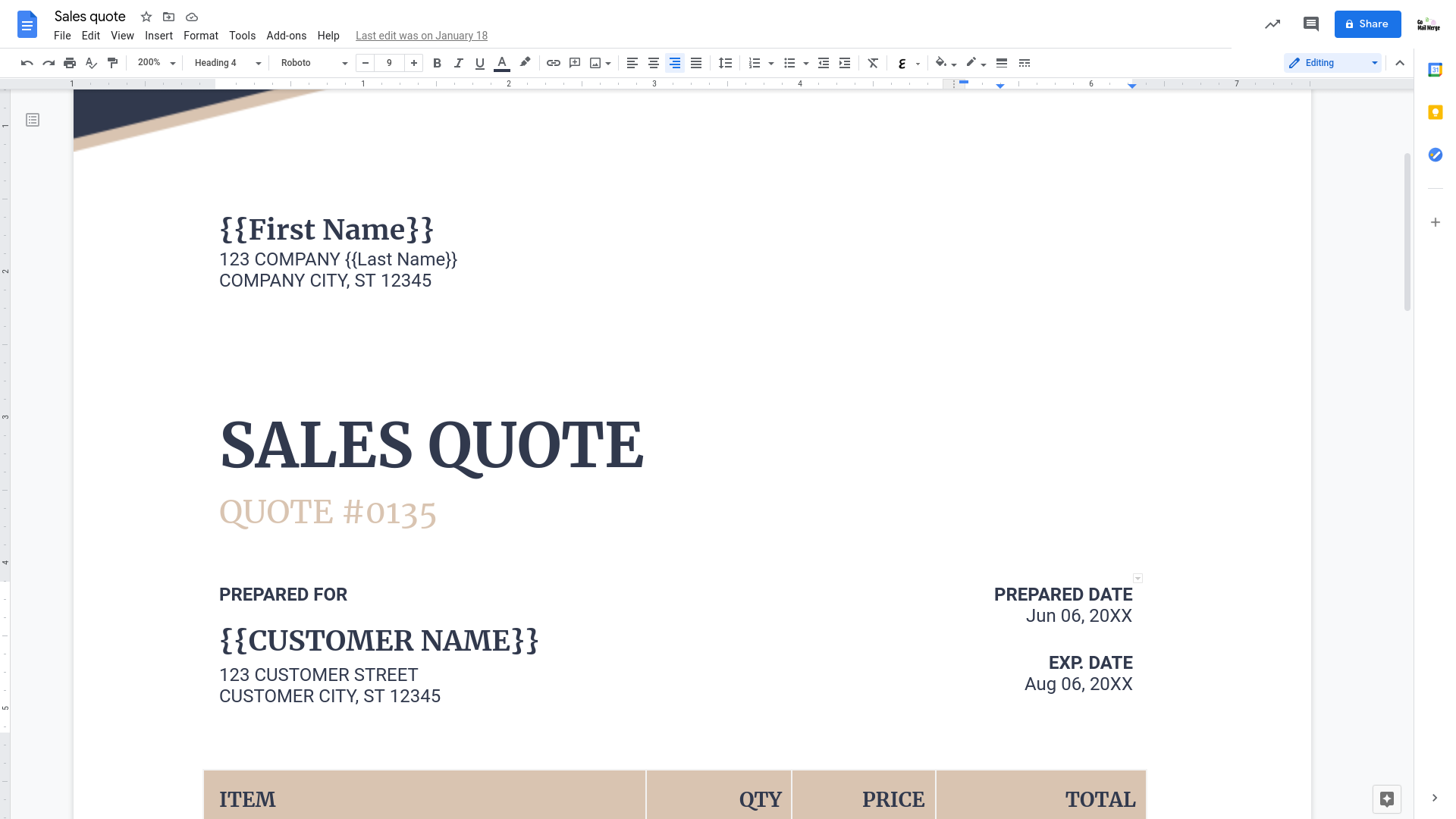
Insert placeholders that match your headers:
Dear {{First Name}},
Your invoice {{Invoice Number}} is ready.
3. Start the merger
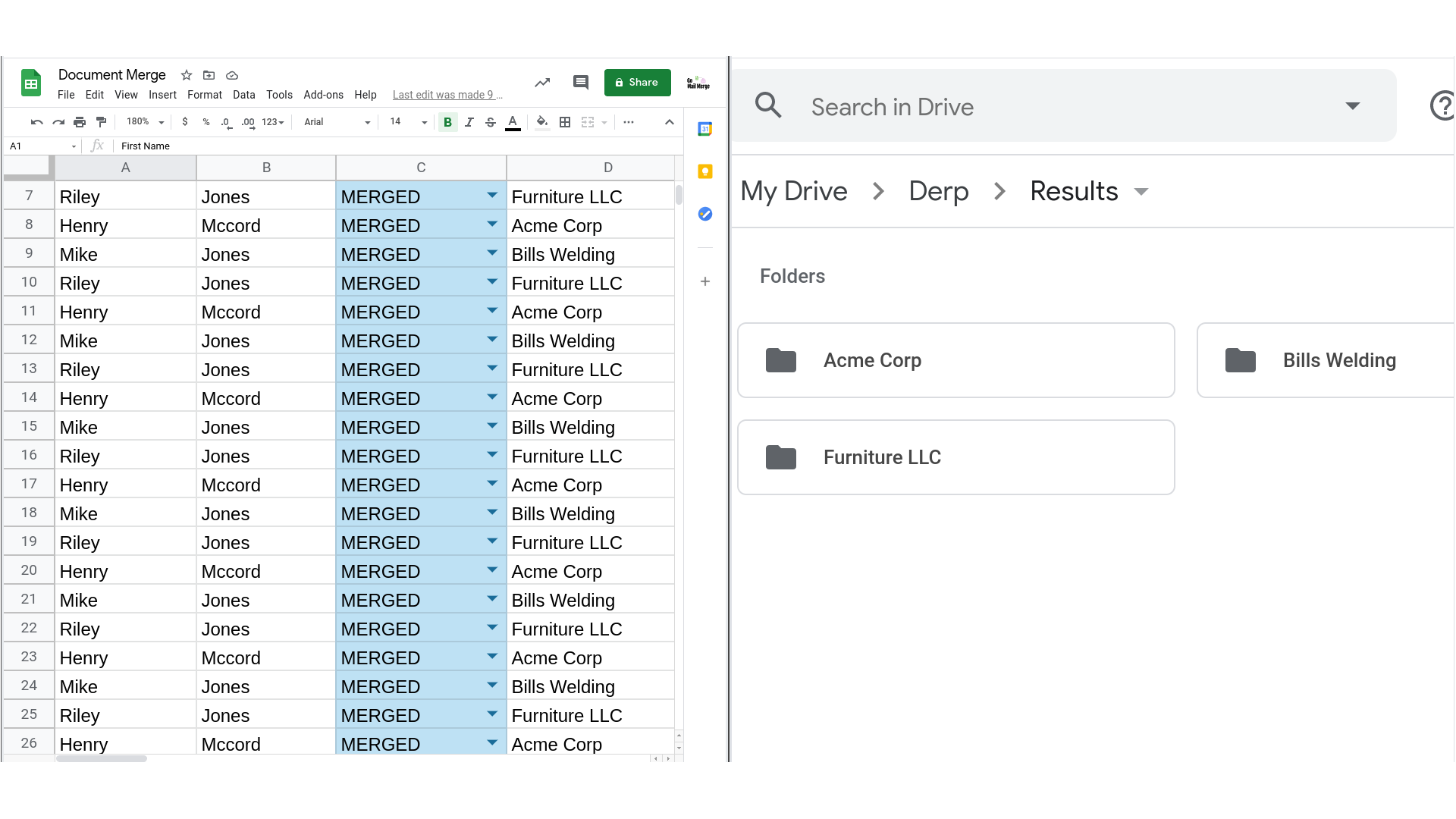
Choose a Drive output path, then click Start Document Merger. The add-on writes one document per row and tracks status in the sheet.
Who this helps
- Finance teams that send recurring invoices
- Schools that issue certificates and report cards
- HR teams that prepare offer letters
- Agencies that produce client statements
Start now
Install Go Document Merge from the Google Workspace Marketplace, then follow the installation docs.